|
|

|
|
Educational Product
|
|
Teachers
|
Grades 9-12
|
|
BOYLES LAB EXERCISE
Question: If the temperature remains constant,
what is the relationship between pressure volume?
This exercise is designed to integrate the use of AppleWorks in
doing a Boyle's Law Experiment. Although the instructions are for
AppleWorks, sample data is given and can imported into any
spreadsheet program. The purpose is to show how spreadsheet programs
can be easily implemented into a classroom setting.
A downloadable version of all files used in this exercise will
soon be available for AppleWorks software.
A downloadable version of this exercise will soon be available for
AppleWorks software.
- Click on "File" and drag to "Open."
- Find the file "
boyles.lab.text," highlight and click on "OK."
- Click on "File" again, and drag to "Open."
- Find the file "
boyles.lab.picture," highlight and click on "OK."
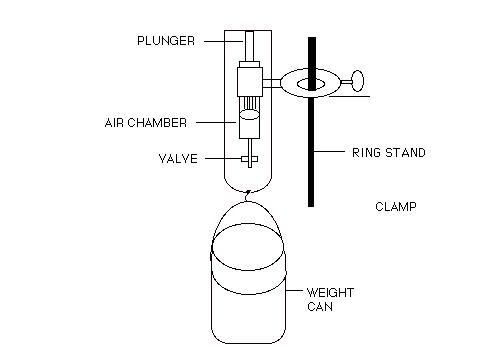
- Take pointer, click in upper lefthand corner of page, and drag
down to lower righthand corner of page so that all parts of the
picture are active.
- Click on "Arrange" and drag to "Group." Notice this changes
the picture from many parts to one solid picture.
- Keep the picture active, click on "File" and drag to "Save
As."
- In the pop up menu under the words "Save As" choose "PICT"
from the pull down menu. Underneath the pull down menu, type
"Boyles.lab.picture.PICT." Click on "Save."
- Click on "View" and drag to "boyles.lab.text."
- Place the cursor on the line underneath line number 1, and
click. Click on "File" and drag to "Insert." Choose
"Boyles.lab.picture.PICT" and click on "Insert."
Current View of Lab.
- Suppose that you want to change the lab so that the students
are adding 3 Newtons after every reading instead of 4.
- In line 4, click infront of the number 4 and drag to the
otherside of it so that it is highlighted. Type the number 3.
Repeat this in lines 6 and 7. Repeat the same proceedure with the
number 56 in line 7, changing it to 42. Click here to look at the
Current View of
Lab.
- Click on "File" and "Save." Click inbetween lines 8 and 9.
- Click on "File" and drag to "Open." Click on "
boyles.lab.sample.graph" and click on
"Open."
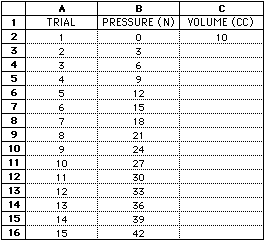
- Click on cell "C2" and drag to cell "D16." Click on "Options"
and drag to "Make Chart." In the gallery menu choose "Line."
- Click on "Axis", and type in "Volume cc" in the text box next
to the words "Axis label." Click in the box under to the word
"Minimum" and type a "0," press tab and type "2.5" in the text box
under the word "Maximum." Press tab again, and type "0.5" in the
text box under the words "Step size."
- Click in the circle next to the words "X axis." In the text
box next to the words "Axis label," type "Pressure N."
- Click on "Series." Make sure there is not an "X" in the box
next to "Label Data" and click in the box next to "Symbol" so that
there is not an "X" in that box either.
- Click on "Labels" and in the text box next to the word "Title"
type "Pressure vs Volume." Click in the box next to the word
"Legend" so that there is not an "X" in that box.
- Click on "General." Click on the box under the words "Use
numbers as lables in" and next to the words "First column" so that
there is an "X" in that box. Click "OK."
- With the chart still highlighted, click on "Edit" and drag to
"Copy." Current View of Lab
Graph
- Click on "View" and drag to "boyles.lab.text."
- Click on "Edit" and drag to "Paste." Current
View of Lab
- Click on "File" and drag to "Open." Choose the file "
boyles.lab.datachart," highlight and
click "Open."
- Click on "View" and drag to "Page View."
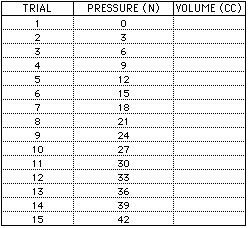
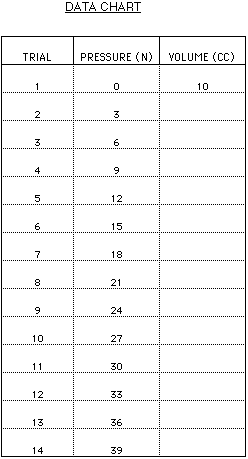
- Click on "Format" and drag to "Insert Header." Type "DATA
CHART," then pres return twice. Highlight the words DATA CHART.
Click on "File" Drag to "Shortcuts." From the side menu, choose
"Show Shortcuts." Click on the center justify button and the
underline button.
- Click on the number 1 in the row headings and drag to row 16,
so that rows 1 through 16 are highlighted. Click on "Format" and
drag to "Row Height." In the text box next to the words "Row
height," type "28." Click "OK."
- Click on "View" and drag to "Page View."
- Click on the number 17 in the row headings so that the entire
row 17 is highlighted. Click on "Options" and drag to "Add Page
Break."
- Click on "Options" and drag to "Display." Click in the box
next to the words "Column headings" and in the box next to the
words "Row headings," so that there is not an "X" in either box.
Click "OK." Highligt the entire chart. Click on "Edit" and drag to
"Copy." Current View of Data Chart
- Click on "View" and drag to "boyles.lab.text."
- Put cursor below line 9.
- Click on "Edit" and drag to "Paste."
Finished Lab
Please send any comments to:
Web Related:
Steven.Gutierrez@grc.nasa.gov
Beth Lewandowski (b.lewandowski@meson.grc.nasa.gov)